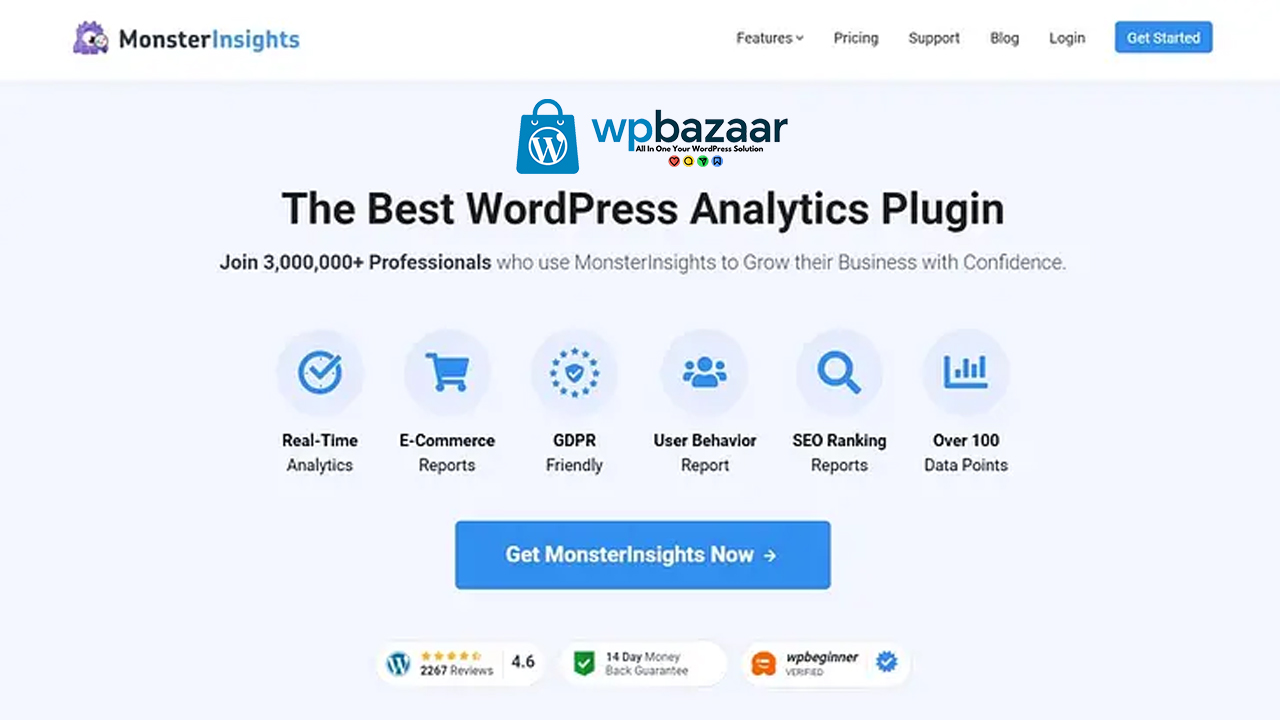
If you want to know how people are visiting your WordPress website, what they are clicking, and which pages are most popular, then the MonsterInsights plugin is a great tool. It connects your website with Google Analytics, so you can see all the important data right from your WordPress dashboard.
This guide will help you understand how to install and set up MonsterInsights easily, even if you’re a beginner. Let’s get started step by step.
What is MonsterInsights?
How to Install the MonsterInsights Plugin on WordPress A Simple Guide MonsterInsights is a powerful Google Analytics plugin for WordPress. It allows you to track your website traffic, user behavior, and conversions. With it, you don’t need to touch any code or hire a developer to set up Google Analytics.
Here’s what you can do with MonsterInsights:
- Connect your WordPress site with Google Analytics
- Track visitors in real-time
- See top-performing pages and posts
- Understand user behavior
- Track eCommerce and form submissions
Now let’s learn how to install it.
Step-by-Step Guide to Install MonsterInsights
Step 1: Log in to Your WordPress Dashboard
How to Install the MonsterInsights Plugin on WordPress A Simple Guide First, go to your website’s admin area by typing:
yourdomain.com/wp-admin
Enter your username and password to log in.
Step 2: Go to Plugins > Add New
From the left-side menu in your dashboard, hover over Plugins and then click on “Add New”.
This will take you to the WordPress plugin library.
Step 3: Search for “MonsterInsights”
In the search box (top right), type: MonsterInsights
You will see a plugin called “MonsterInsights – Google Analytics Dashboard for WordPress” by MonsterInsights.
Click on the “Install Now” button.
Step 4: Activate the Plugin
How to Install the MonsterInsights Plugin on WordPress A Simple Guide Once installed, the button will change to “Activate”.
Click on it to activate MonsterInsights on your site.
Now, the plugin is live and ready to set up.
Step 5: Connect Your Site with Google Analytics
After activation, you will see a welcome screen.
Click on the “Launch the Wizard” button to start the setup process.
In the setup wizard:
- Choose your website type: Business Website, Blog, or eCommerce.
- Click “Save and Continue.”
- Next, click the “Connect MonsterInsights” button.
You will be asked to log in with your Google account that has access to your Google Analytics property.
Once logged in:
- Select your website from the list.
- Give permission to MonsterInsights to access your Analytics account.
- Complete the authentication.
Now your website is connected with Google Analytics.
Step 6: Choose Recommended Settings
MonsterInsights will suggest some default settings. You can:
- Enable file download tracking
- Enable events tracking
- Enable enhanced link attribution
- Track affiliate links (like /go/ or /refer/)
Click “Save and Continue”.
You can also connect with other features later, like Forms tracking, eCommerce tracking, and more.
Step 7: View Reports in WordPress
Once everything is set up, go to the Insights tab in your WordPress dashboard.
Here, you can see:
- Overview report
- Real-time traffic
- Top pages
- Top sources
- Devices used
- Location of users
All this data helps you improve your website and make better decisions.
Extra Tips:
- Use the Pro Version:
MonsterInsights has a free version and a paid version. If you run an eCommerce site or want advanced tracking (like ads, downloads, etc.), you might want to try the Pro version. - Use Addons:
You can install addons for features like WooCommerce, Forms, Ads tracking, etc. - Enable Enhanced eCommerce (for online stores):
If you run a store with WooCommerce or Easy Digital Downloads, MonsterInsights can show you sales, conversion rates, and more.
Summary Table:
| Step | What to Do |
| 1 | Log in to WordPress dashboard |
| 2 | Go to Plugins > Add New |
| 3 | Search and install “MonsterInsights” |
| 4 | Activate the plugin |
| 5 | Connect with Google Analytics |
| 6 | Choose recommended settings |
| 7 | View reports from the WordPress menu |
Final Words
MonsterInsights makes Google Analytics simple for WordPress users. You don’t need to write any code or go to the Google Analytics website every time. Just install the plugin, follow the setup wizard, and get all your website data in one place This tool is especially useful for bloggers, business owners, marketers, and eCommerce store managers. With clear insights, you can grow your website and reach your goals faster.
Note: All photos and videos have been taken from Google or YouTube, so if you have any problem with the photo then mail us.
If you find any problem in this post or want to remove this post, then contact us: CONTACT US
🚀 We Recommend Hostinger
📢 Exclusive Offer 🎁
If you purchase Hostinger hosting through our link and contact us via WhatsApp or Email,
you will receive one Premium Website Template absolutely free (100% Free of Cost).